
 Close


A server can run for years without a single complaint. Then the warranty runs out, a disk fails on a Friday and nobody remembers how it was set up. That’s how most Azure cloud migrations start. Not with a plan, but with a problem.
This time there is also a hard date. Windows Server 2016 loses support on 12 January 2027. After that, Microsoft stops issuing security updates and fixes for it. If you’re asking whether it’s time to move, the answer is yes when your servers are ageing, your running costs keep rising, staff can’t reach files safely from outside the office, one failure could stop the business, or old systems are holding back growth. Below are the five signs, a quick self-check and a step-by-step plan for an Azure cloud migration that doesn’t break anything.
- Azure cloud migration means moving servers, databases, files and apps from hardware you own to Microsoft’s cloud.
- Windows Server 2016 loses support on 12 January 2027. SQL Server 2016 lost support on 14 July 2026.
- The five signs are ageing servers, rising costs, poor remote access, no tested recovery plan and old systems that slow growth.
- Tick three or more boxes in our self-check and it’s time to look at Azure.
- Not everything should move. Some systems are better retired, rebuilt or kept on site.
- Moving the servers is the easy part. The foundation, the dependencies and who owns it afterwards decide whether it works.
What is Azure cloud migration?
Azure cloud migration means moving your servers, databases, files and business apps from equipment you own to Microsoft Azure, Microsoft’s cloud platform. Instead of a server in a cupboard, you run the same workload on virtual machines and services that Microsoft hosts. The bill follows your usage, and Microsoft looks after the buildings, power and hardware.
People often mix up Azure and Microsoft 365. They work together, but they do different jobs. Microsoft 365 gives you email, Teams, SharePoint and OneDrive. Azure is where you run servers, databases and line-of-business apps.
| What you run today | Where it can go in the cloud |
|---|---|
| Shared drives and file servers | SharePoint, Teams and OneDrive |
| Servers and business apps | Azure virtual machines, or managed Azure services |
| SQL Server databases | SQL Server on an Azure virtual machine, or a managed Azure SQL service |
| Laptops and devices | Managed from the cloud with Microsoft Intune and Microsoft Entra ID |
| Backup and recovery | Azure Backup and Azure Site Recovery |
The cloud isn’t all or nothing. Many businesses end up with a mix: some systems in Azure, some in Microsoft 365 and a few still on site. That mix is called hybrid, and for plenty of firms it’s the right answer. Our cloud computing team can help you decide the right mix for your setup.
5 signs it’s time to move to Azure
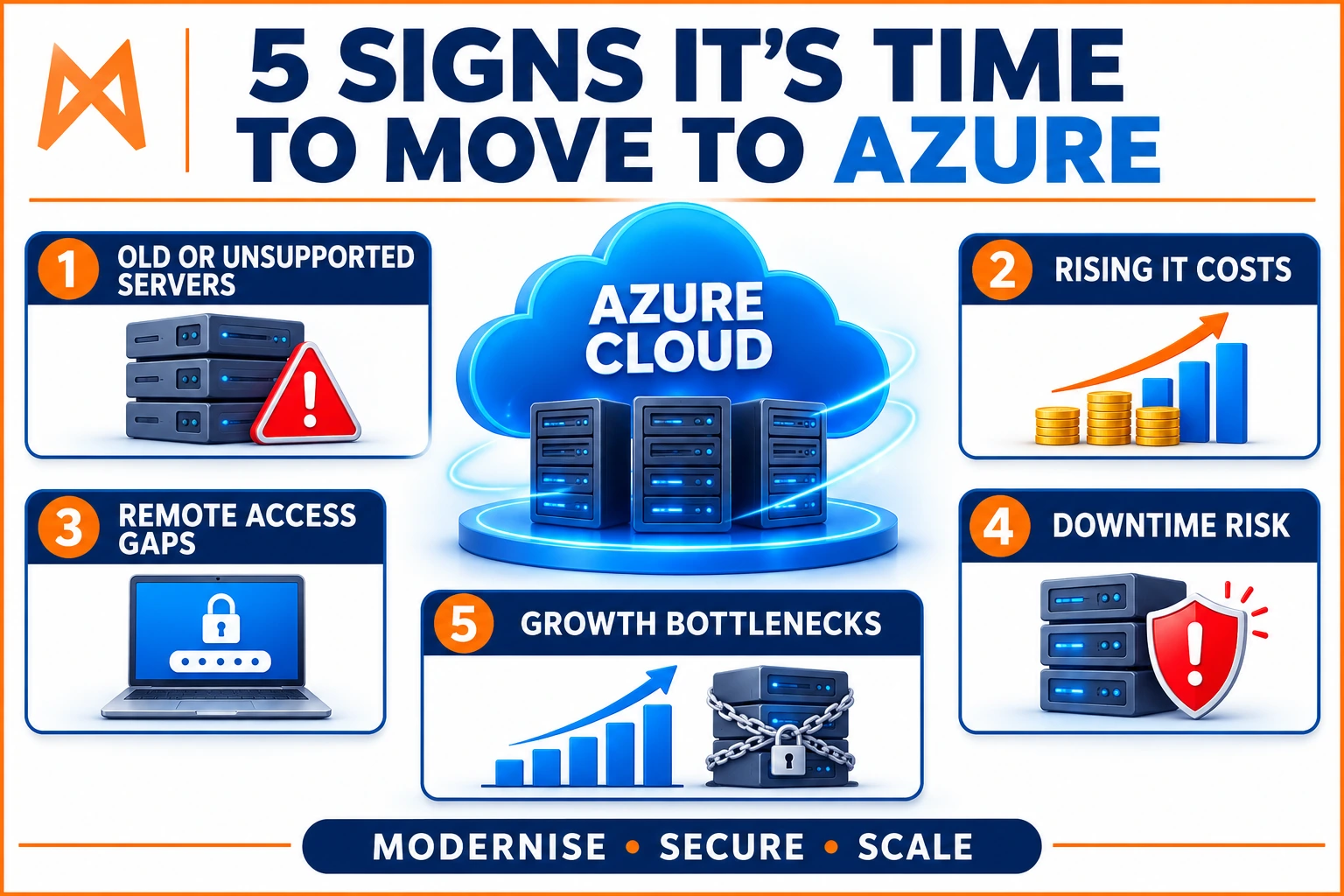
Read each sign and be honest. One on its own is normal. Several together tell you something.
1Your servers are old, or their support is ending
Hardware doesn’t fail on a schedule. It fails on a Friday afternoon. The older the server, the longer a repair takes, and the harder it gets to find parts and people who know the system.
Software has a fixed end date too, and some of those dates are close. Windows Server 2016 loses support on 12 January 2027. SQL Server 2016 lost support on 14 July 2026. Once support ends, no new security fixes arrive. Extended Security Updates can cover you for a while, but they only buy time. The server is still old, and you still have to replace it.
Unsupported software is also a problem for Cyber Essentials, which expects the software you run to stay supported.
- Which of our servers run Windows Server 2016 or older?
- Do we run SQL Server 2016 or older anywhere?
- How old is our oldest server, and who knows how it was set up?
2Running costs keep rising and nobody can explain them
On-site servers cost more than the price tag. There’s power, cooling, space, replacement every few years, backup kit and the staff time to keep it all running. These costs creep up, and one failed part can turn into a surprise bill.
Azure changes how you pay. Instead of buying hardware up front, you pay a monthly bill based on usage, and you can resize or switch off what you don’t need. If you already own Windows Server or SQL Server licences with Software Assurance or a qualifying subscription, Azure Hybrid Benefit lets you use them in Azure to lower the cost of running those workloads.
One honest warning: Azure isn’t automatically cheaper. A server left running at full size all month costs the same whether anyone uses it or not. Good planning, right-sizing and regular cost reviews make the difference. Azure Migrate, Microsoft’s own migration tool, can build a cost comparison before you commit, and Microsoft describes it as a free service.
- Can we say what our IT hardware costs each year, including power, cooling and repairs?
- When did we last check whether a server is bigger than it needs to be?
- Do we own Windows Server or SQL Server licences with Software Assurance or a qualifying subscription?
3Staff can’t reach files and apps safely from outside the office
Work no longer happens in one building. People work from home, on client sites and on the road. If they rely on a VPN that keeps dropping, or email files to themselves, your setup hasn’t caught up.
A cloud setup lets people sign in securely from anywhere. Microsoft Entra ID gives each person one login with multi-factor authentication. Files move to SharePoint and OneDrive. Microsoft Intune manages and secures laptops wherever they are. Servers and apps that must stay central run in Azure.
It helps with security rules too. Under the 2026 Cyber Essentials rules, you fail automatically if a cloud service that offers MFA doesn’t have it switched on. A well-planned Azure and Microsoft 365 setup makes that easy to check in one place.
- Do staff use a VPN or workarounds to reach files?
- Is MFA on for every cloud service we use?
- Can we remove a leaver’s access in one step?
4One failure or attack could stop the whole business
Ask a simple question. If your main server died tonight, how long until people could work again? If nobody knows, that’s a sign.
Azure has real tools for this. Azure Site Recovery copies your servers to a second location, so you can switch over if something goes wrong. In the UK, Azure’s UK South and UK West regions are a pair, so your recovery copy can stay inside the UK.
But moving to Azure doesn’t make you safe on its own. Microsoft is clear that using a paired region doesn’t give you automatic failover or disaster recovery. You have to set it up, decide how fast you need to recover and test it. Our ransomware recovery case study covers Azure disaster recovery in a real situation.
Security is part of the same picture. Azure offers identity controls, encryption and threat detection, including Microsoft Defender for Cloud. They only help once they are switched on and someone watches the alerts. Plan who does that before go-live.
- When did we last test restoring a full server from backup?
- How long could we be down before it really hurts?
- Is a copy of our data stored away from the office?
5Growth and old systems are holding you back
Growth should feel good. If every busy period slows your systems, or each new starter takes days to set up, your infrastructure has become the bottleneck.
Azure lets you add power when demand rises and scale back when it falls, so you don’t have to buy for the busiest day of the year. Old systems cause a second problem: they’re hard to connect to anything new. Adding automation, reporting or AI tools to a ten-year-old server is slow and risky.
There’s a people cost too. If your IT team spends most weeks on patching, hardware and firefighting, they have no time for projects that help the business. Moving routine infrastructure to the cloud frees that time. If you have no IT lead at all, a virtual IT manager can own the plan.
- Do busy periods slow our systems down?
- Is it hard to connect our older apps to newer tools?
- Does our IT team spend more time fixing than improving?
The 2-minute self-check
Tick every statement that’s true for your business. Three or more ticks means it’s time to look at your options.
- We run Windows Server 2016 or older, or SQL Server 2016 or older.
- One of our servers is more than five years old and nobody wants to replace it.
- We can’t say what our IT hardware costs us each year.
- Staff use a VPN or workarounds to reach files from home.
- We’ve never tested restoring a server from backup.
- If our main server failed, we’d be down for more than a day.
- Busy periods slow our systems down.
- Our older apps can’t connect to newer tools.
- Our IT team spends more time on maintenance than on projects.
- Only one person knows how our servers are set up.
Should everything move to Azure?
No. A good migration starts by asking what each system is for. Some are worth moving as they are. Some should be rebuilt. Some should be switched off. These are the usual options.
| Option | What it means | When it fits |
|---|---|---|
| Retain | Keep it where it is for now | A system that must stay on site, or one that needs very fast links to on-site kit |
| Retire | Switch it off | Apps that nobody uses any more |
| Rehost | Move it as it is to an Azure virtual machine | You need the fastest move with the least change, for example off an ageing server |
| Replatform | Move to a managed Azure service, such as managed SQL | You want less upkeep without rebuilding the app |
| Refactor | Redesign the app to suit the cloud | A key app that needs to scale or add new features |
Rehosting is often the right first step when a deadline is close, such as Windows Server 2016. You can modernise later, once the pressure is off.
Watch the connections too. An app server in Azure that talks to a database left on site can run slowly. That’s why you map what depends on what before anything moves.
5 questions to ask before you start
Answer these before you move anything. If you can’t, an assessment is your first job.
- Which workloads should move, and which should stay? Sort each system into retain, retire, rehost, replatform or refactor.
- Is the foundation ready? Identity, access, networking and security rules should exist before the first workload lands.
- Do we know the dependencies? Map the logins, DNS, databases and links each app needs.
- How will we test it, and how do we roll back? Agree both before the pilot.
- Who owns security, monitoring, backup and cost afterwards? Name a person for each.
Rushed or emergency moves usually cost more. Skipped planning turns into rework, downtime and surprise bills.
How an Azure cloud migration works
A good migration is boring. Nothing breaks, and staff mostly notice a new login screen. This is the order we’d follow.
Step 1: assess
- List every server, database, app and file share
- Map what depends on what, including logins, DNS and network links
- Use Azure Migrate to check readiness and estimate costs
Step 2: build the foundation
- Set up identity, access rules and security first. This is called an Azure landing zone
- Plan the secure link between your office and Azure
- Decide naming, tagging, backup, monitoring and cost controls
Step 3: pilot
- Move one small, low-risk workload first
- Test speed, security, backup and recovery
- Agree a rollback plan before you start
Step 4: migrate in waves
- Group workloads by business service, not by server
- Start with simple and non-live systems, then move critical ones
- Agree downtime windows with each team
Step 5: run and improve
- Monitor, patch and back up the new setup
- Test recovery on a schedule
- Review costs every month and name an owner for each task
Why group by business service? A business app is rarely one server. It may need a web server, an application server, a database, a file share and a login system working together. Move one without the others and something breaks. Our data migration service plans around services for exactly that reason.
Azure migration mistakes to avoid
- Moving first and fixing governance later. Naming, permissions, tagging and security are much harder to correct once live apps are running.
- Planning around servers instead of apps. An app needs its partner systems to work, so they have to move together.
- Forgetting DNS and network links. A workload that can’t find what it depends on will fail, or crawl.
- Assuming Azure includes disaster recovery. You set it up and test it.
- Ignoring cost control. Right-size servers, switch off what you don’t use and review the bill every month.
- Rushing the move. A move forced by a failed server or a support deadline costs more than one planned months ahead. Start before the date, not after.
- Having no owner after go-live. Someone has to watch alerts, backups, security and costs. A managed services partner can take that on.
Success isn’t “we moved 50 servers”. It’s that apps kept working, security improved, backups can be restored and your team can see what they’re paying for.
What affects the cost of an Azure migration?
There are two costs: the one-off cost of the move and the monthly cost of running in Azure. Prices vary too much for an honest figure without an assessment. These factors decide the bill:
- How many servers you have, how big they are and how busy
- Whether you can use existing licences through Azure Hybrid Benefit
- How much data you move and how fast you need to recover it
- Whether you rehost, replatform or rebuild
- Backup, disaster recovery and security tools
- Which region you choose, and whether you commit to reserved capacity for steady workloads
Ask for a business case that compares your current costs with Azure costs. Include the hardware you stop buying and the staff time you win back. Azure Migrate can build estimates from your own data.
Do it yourself or get help?
Small, simple moves can be done in-house, such as moving shared files to SharePoint. Server and database migrations carry more risk. Help makes sense when you have a tight deadline, old or unusual systems, no spare IT time or a need for near-zero downtime. A good partner also hands over a setup you can run: documentation, monitoring, backup tests and a named owner.
Not sure if it’s time to move?
Book a free 30-minute call with our London team. We’ll look at your current servers and give you an honest, plain-English view of what should move, what should stay and what to plan first.
Book a free consultationContact usFrequently asked questions
What is Azure cloud migration?
Azure cloud migration means moving your servers, databases, files and business apps from equipment you own to Microsoft Azure, Microsoft’s cloud platform. The bill follows your usage, and Microsoft looks after the buildings, power and hardware.
How do I know it’s time to migrate to Azure?
Look for a pattern, not one bad day. The clearest signs are ageing servers or ending support, rising running costs, poor remote access, no tested recovery plan, and old systems that slow growth. If three or more apply, it’s time to look at Azure.
What happens when Windows Server 2016 support ends?
After 12 January 2027, Microsoft stops releasing security updates and fixes for Windows Server 2016. You can upgrade the server, move the workload to Azure, or buy Extended Security Updates as short-term cover. Planning early avoids a rushed move.
Is Azure cheaper than running servers on site?
It can be, but not automatically. You stop paying for hardware, power and replacement, and you pay a monthly bill based on usage. Existing Windows Server and SQL Server licences with Software Assurance can lower the cost through Azure Hybrid Benefit. A server left running at full size still costs money, so right-sizing and regular cost reviews matter.
Will an Azure migration cause downtime?
It doesn’t have to. Careful planning, a pilot move and agreed time windows keep disruption low. Critical systems can be copied continuously and switched over in a short final step, so staff notice very little.
How long does an Azure migration take?
It depends on what you run. Moving shared files to SharePoint is quick. Moving a business app with a database and many connections takes longer. An assessment gives you a realistic timeline before you commit.
Should everything move to Azure?
No. Some systems should move as they are, some should be rebuilt, some should be switched off and a few are better kept on site. A good assessment sorts each system into the right group before any move starts.
What is the difference between Microsoft 365 and Azure?
Microsoft 365 gives you email, Teams, SharePoint and OneDrive. Azure is where you run servers, databases and line-of-business apps. Most businesses use both, and they work well together.
Does Azure back up my data automatically?
Not by default for every workload. You choose and set up backup and disaster recovery for your servers, then test it. Microsoft also says that using a paired region does not give you automatic failover, so you need your own recovery plan.
Can I keep my data in the UK?
Azure lets you choose a UK region for your resources. UK South and UK West are paired regions inside the UK. Check the data location settings for each service you use.
Leave a Reply